Use Monfil
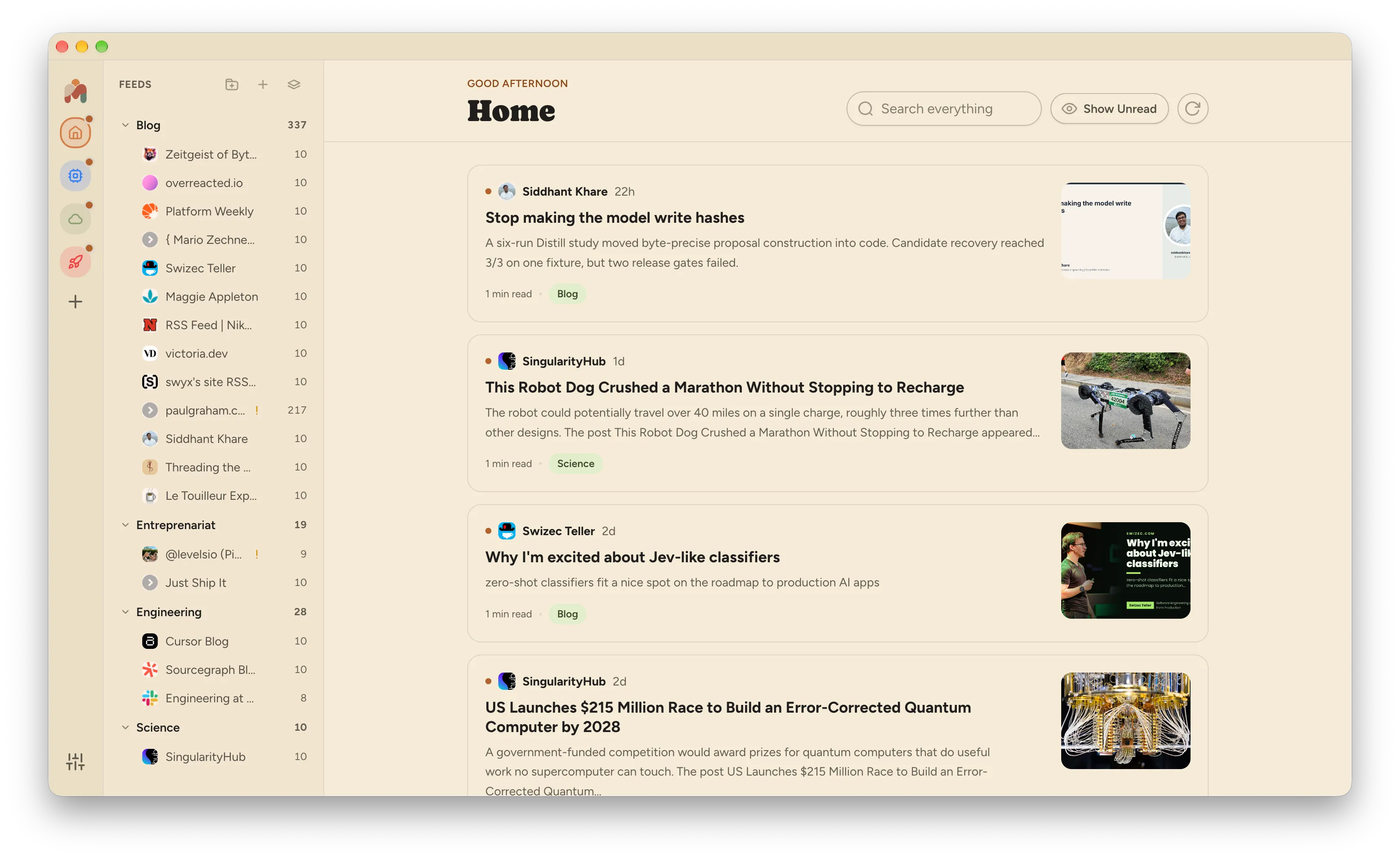
Install Monfil before you start. Monfil opens in Home. Your workspaces are in the narrow rail on the left. The next sidebar holds your feeds and folders. Articles from the selected workspace appear in the main area.
Add a feed
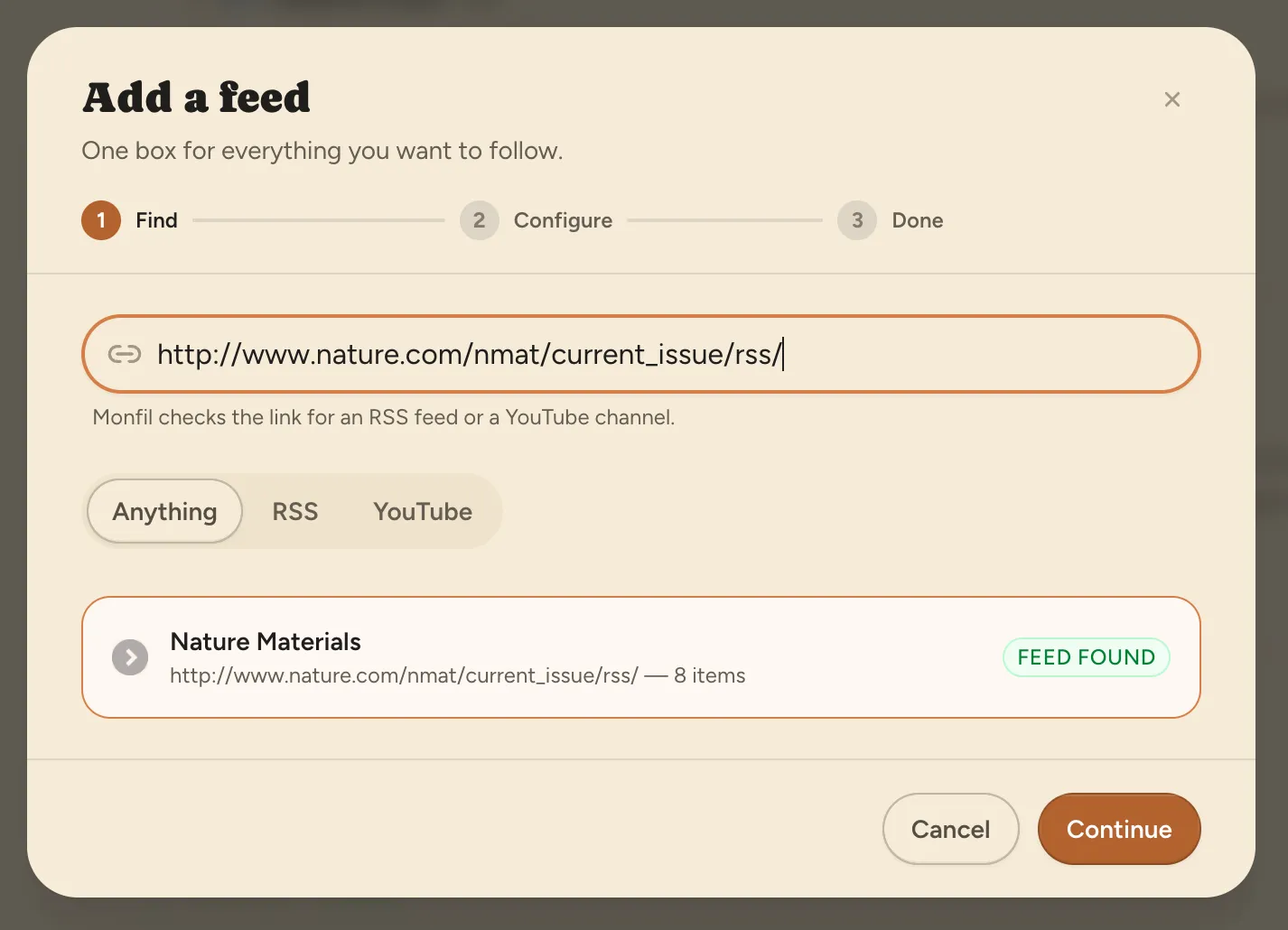
Section titled “Add a feed”- Select + at the top of the feed sidebar. On an empty Home, you can select Add your first feed instead.
- Paste a link: a website, a feed, a GitHub repository, Hacker News, an arXiv listing, a YouTube channel, or a Bluesky or Mastodon profile. For a handle, press Enter. Monfil checks the link and shows the feed it finds. If the link leads to more than one feed, select the one you want. See Supported sources for each source.
- Select Continue. Choose a folder under Put it in, or select + New category to make one. The folder will appear in the feed sidebar.
- Select Add source. Monfil adds recent items from that feed. Select Go to feed to finish, or Add another to keep going.
If Monfil finds the wrong source, go back and try a more direct feed or channel link. You can select a source type, such as RSS, YouTube, or GitHub, above the result to narrow the search.
Organize feeds
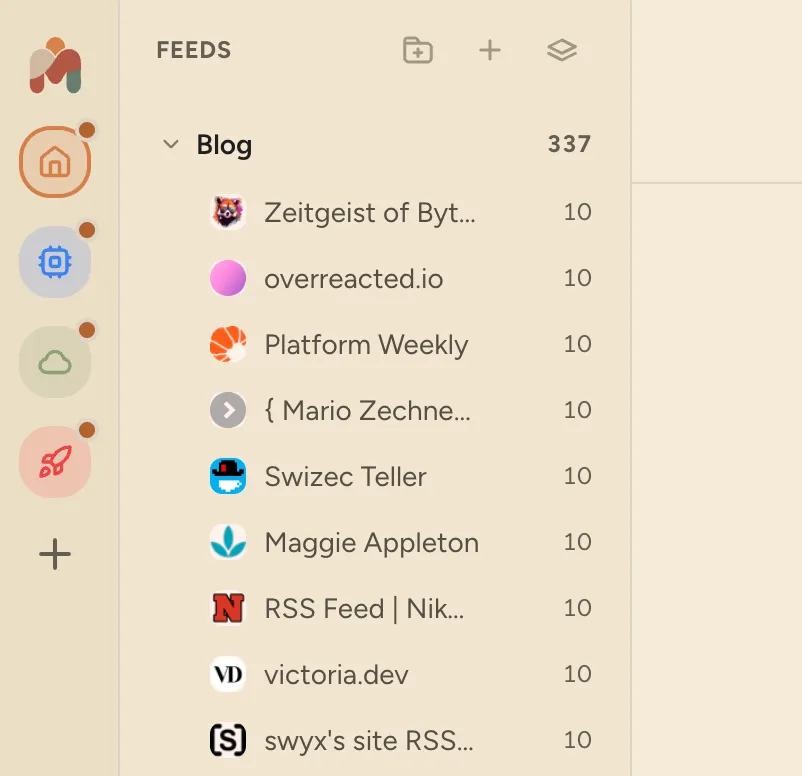
Section titled “Organize feeds”Select the folder icon beside + in the feed sidebar to make a folder. Type its name and press Enter. Drag a feed onto a folder to move it. To rename or delete a folder, right-click it. If the folder has feeds, Monfil asks where to move them before it deletes the folder. Right-click a feed to remove it.
Focus on or hide feeds
Section titled “Focus on or hide feeds”Click a feed in the sidebar to show only its articles. Click another feed to add it to the focus. Click a focused feed again to remove it. A folder has the same two controls: select the focus button beside its name to focus every feed in it.
To hide a feed, select the eye beside it. The eye appears when you point at the row, and it stays in view for a hidden feed. Select it again to show the feed. A hidden feed stays hidden after you restart Monfil.
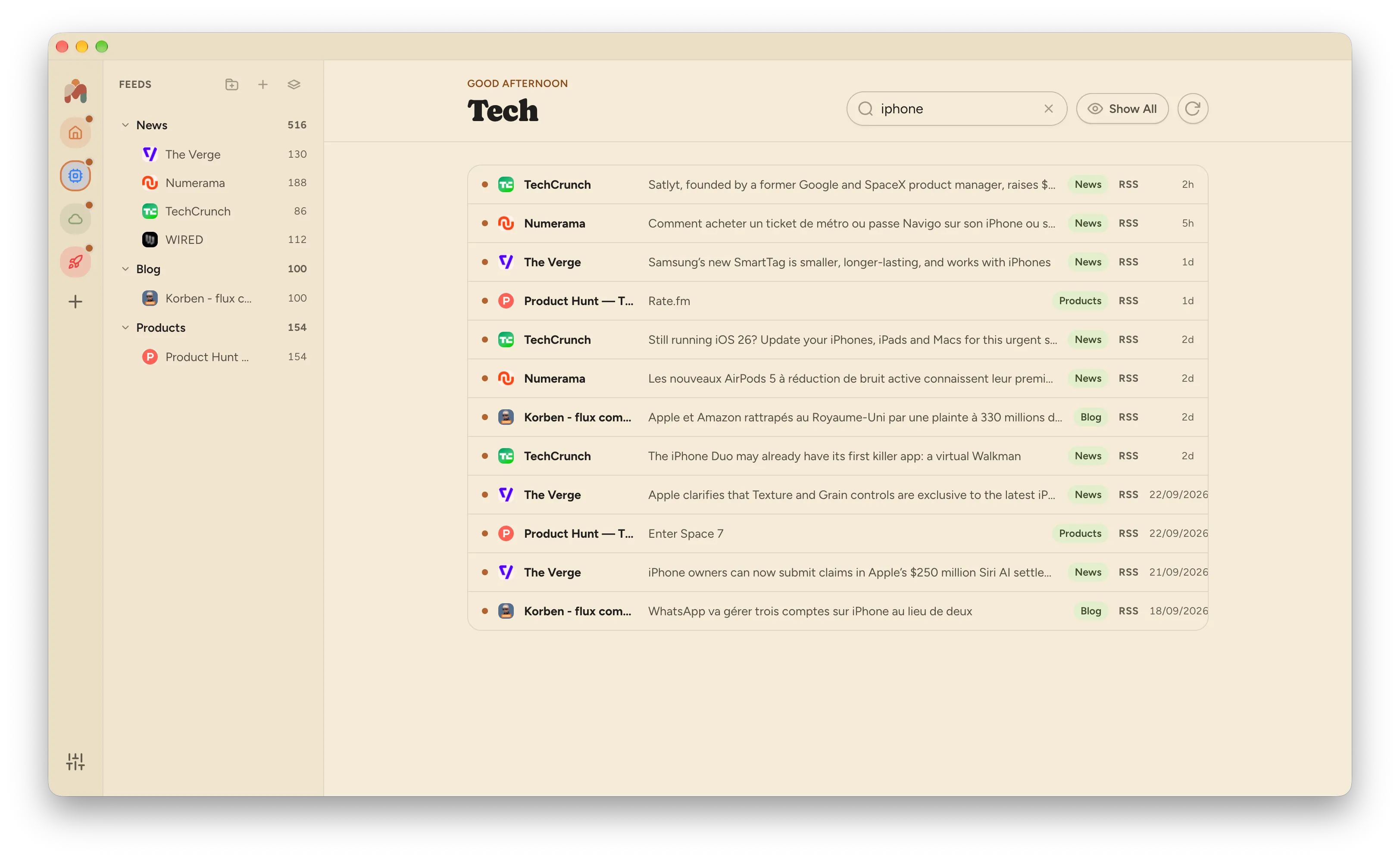
A strip appears under the title when a filter is on. Showing 2 of 5 feeds means a focus is active, and Show all clears it. 3 hidden feeds means some feeds are hidden, and Show brings them back. Each workspace keeps its own focus. Monfil clears the focus when you restart it.
Workspaces
Section titled “Workspaces”A workspace groups feeds and folders around a subject, such as work or hobbies. Each workspace has its own feed list and article list. Monfil opens in Home. Select a workspace icon in the narrow left rail to switch to it. Hold the pointer on an icon to see the workspace name. Press Cmd+1 to Cmd+9 (Ctrl+1 to Ctrl+9 on Windows and Linux) to open the first nine workspaces. Press Cmd+K (Ctrl+K) to find a workspace by name. To change the order of the workspaces, drag an icon above or below another icon in the rail. The shortcuts follow the new order.
Add a workspace
Section titled “Add a workspace”- Select + in the left rail.
- Enter a name. Choose an icon and colour if you want to change the defaults.
- Select Create workspace. Monfil opens the new workspace. Add feeds with + in the feed sidebar.
Rename or update a workspace
Section titled “Rename or update a workspace”Right-click its icon in the left rail and select Edit workspace. Change its name, icon, or colour, then select Save changes. To change its sources, open the workspace and add feeds or organize its folders in the feed sidebar.
Delete a workspace
Section titled “Delete a workspace”Right-click its icon and select Delete workspace. The confirmation window offers Export as OPML if you want to save its feed list. Select Delete workspace to remove the workspace and its folders. Monfil also removes feeds that appear only in that workspace. Feeds in other workspaces stay there. Home stays available and has no delete command.
Start with a feedpack
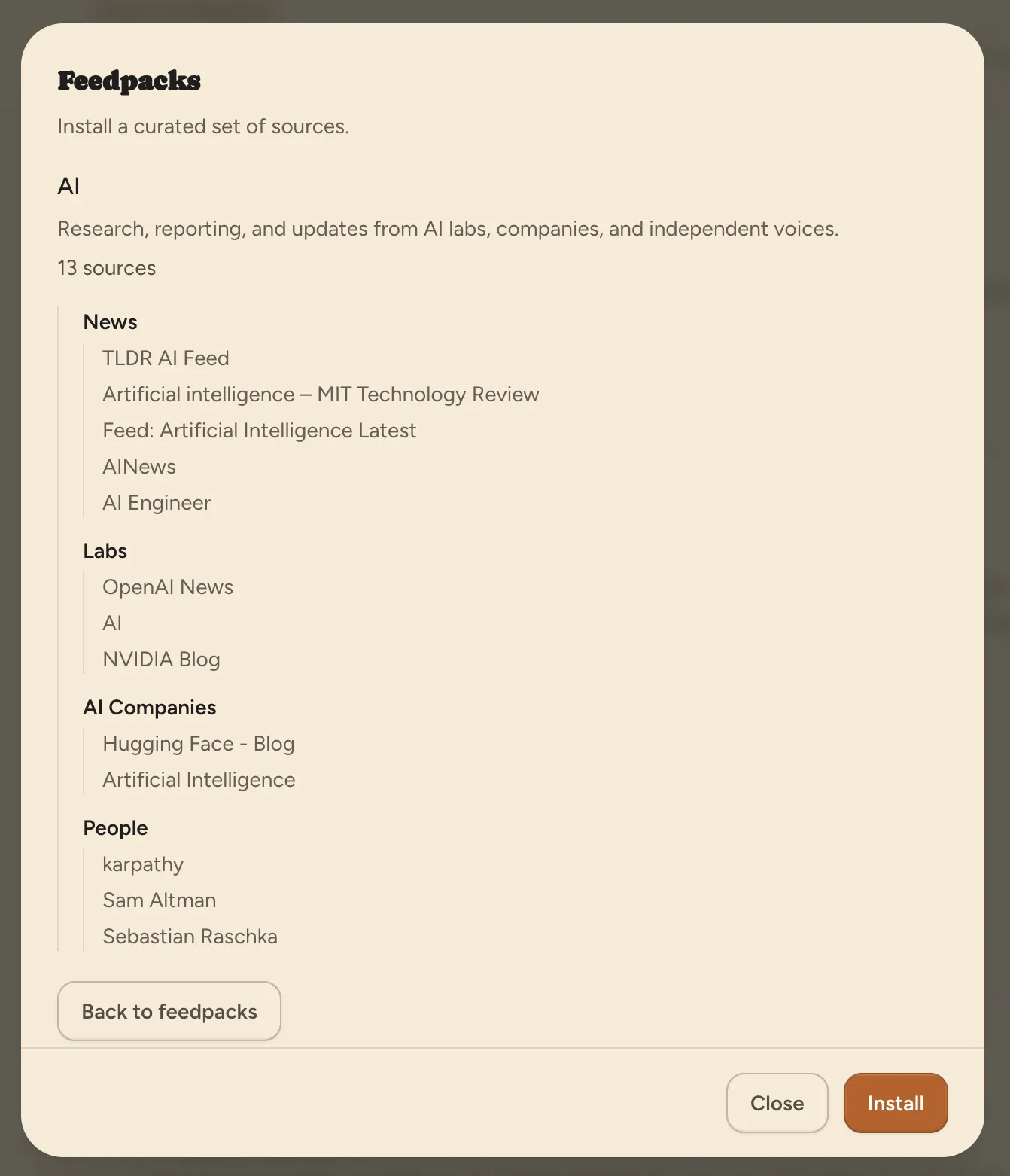
Section titled “Start with a feedpack”A feedpack is a curated set of sources on one subject. Select the feedpack icon at the top of the feed sidebar, or select Browse feedpacks while making a workspace. An empty workspace also has an Import feedpack button.
Choose a pack to see its sources, then select Install. When you open the browser from the feed sidebar, Monfil adds the pack to the current workspace. When you open it while making a workspace, Monfil makes a new workspace for the pack.
You can submit a feedpack when you have a source collection to share.
Import or export a list of feeds
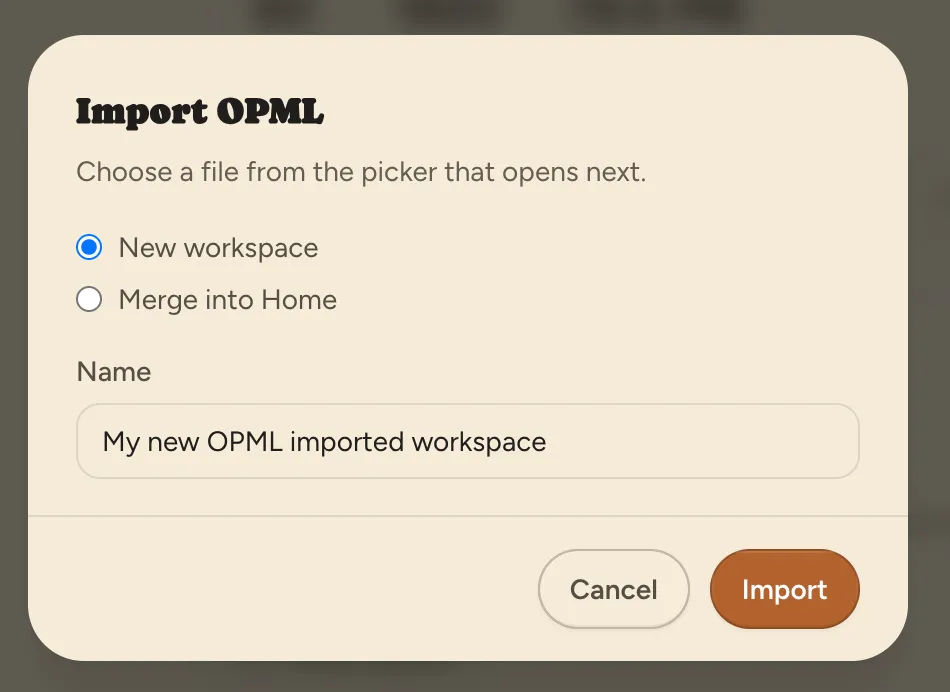
Section titled “Import or export a list of feeds”OPML is a file format for moving feed lists between readers. To import one, open Settings, go to Your data, and select Import OPML. Choose New workspace or Merge into Home, then select Import and pick the file. In an empty workspace, Import OPML adds the feeds to that workspace.
To save a workspace as an OPML file, right-click its icon in the left rail and select Export as OPML. Choose where to save the file. You can use it later as a copy of that workspace’s feed list.
Read and find articles
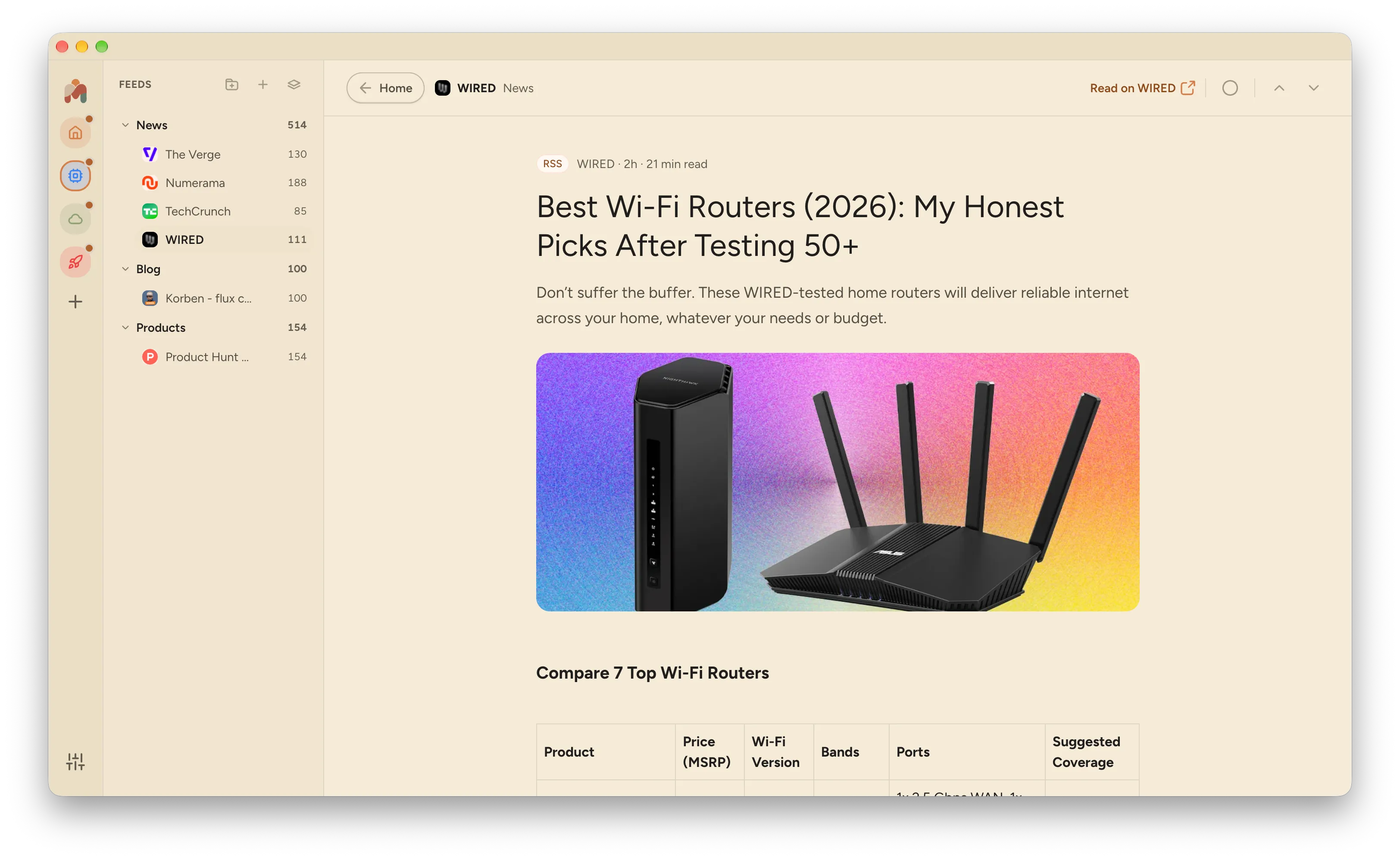
Section titled “Read and find articles”Select an article in the main list to open it in Monfil’s reader. Use Search above the list to find articles in the current workspace. Select Unread to hide read items, and select All to bring them back. The refresh button beside it checks your feeds for new items.
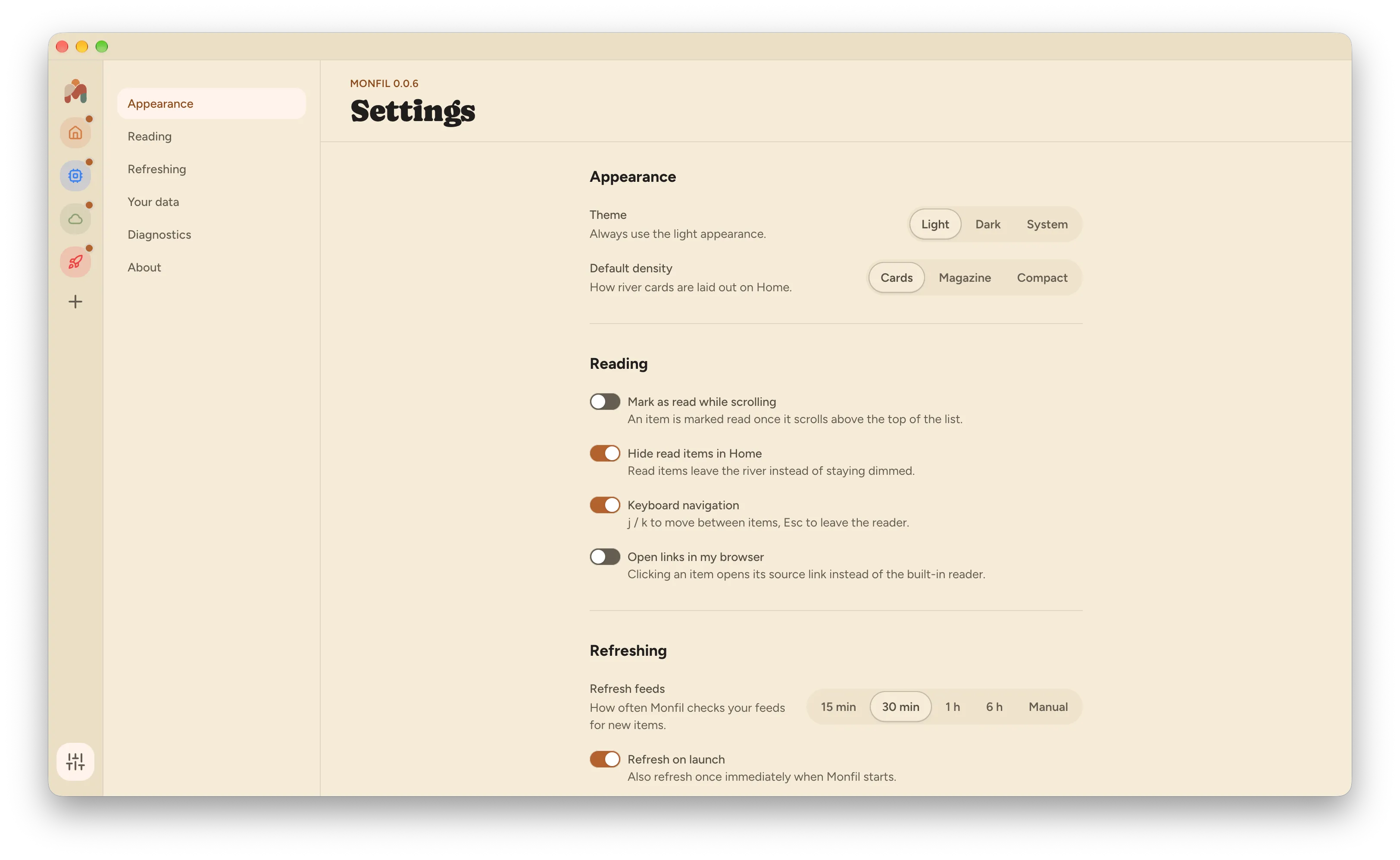
For keyboard controls, open Settings and turn on Keyboard navigation under Reading. Then use j and k to move between articles. Press Esc to leave the reader.
Change your settings
Section titled “Change your settings”Select the settings icon at the bottom of the left rail. Under Appearance, choose a theme and the layout density for article cards. Reading controls what happens as you scroll and whether links open in your browser. Under Refreshing, choose how often Monfil checks for new items. Your data lets you back up the database or reveal its file on your computer.
Read the privacy notice for details about local data and requests to other sites.